

Curate the tools an upstream exposes
Choose how to curate tools
Curate the same way in the Portal or in code. Both write the same mcp-capability-filter-inbound policy, so you can switch approaches at any time.
In the Portal
Curate tools, prompts, and resources from the MCP Gateway Virtual Server UI. No local setup required.
When an upstream MCP server exposes more capabilities than belong in front of an
AI client, curate the subset that passes through. In the Portal, the MCP
Gateway Virtual Server wizard does this on its Tools step: choose
Curate instead of Passthrough and pick exactly what to expose. The
wizard writes an mcp-capability-filter-inbound policy and attaches it to the
route for you.
For the conceptual model behind capability filtering, including what it filters and how projections work, see Capability filtering.
Prefer working in code? The code version configures the same policy directly in your project files.
Curate on the Tools step
The Tools step appears while you add or edit an MCP Gateway Virtual Server. For a full walkthrough of creating one, see the Portal quickstart.
-
Open the Virtual Server wizard. On the Code tab, click Add Route and choose MCP Gateway Virtual Server, then work through the wizard to the Tools step. (To curate an existing server, open its route and reopen the wizard.)
-
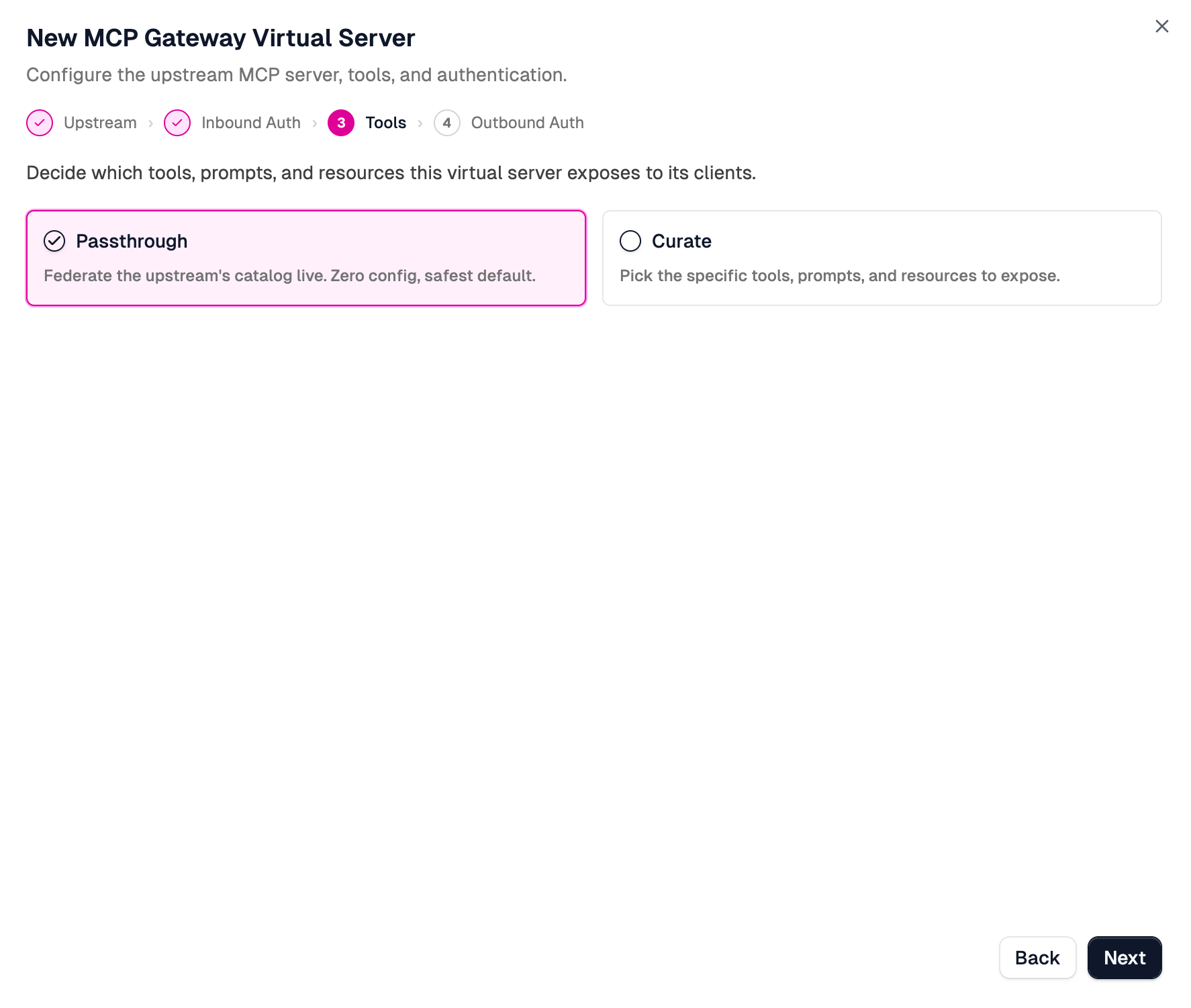
Choose Curate. The Tools step offers two modes:
- Passthrough federates the upstream's full catalog live. Zero config, and the safest default when you want to expose everything.
- Curate lets you select the specific tools, prompts, and resources to expose. Everything you don't select is hidden from clients.
Select Curate.
-
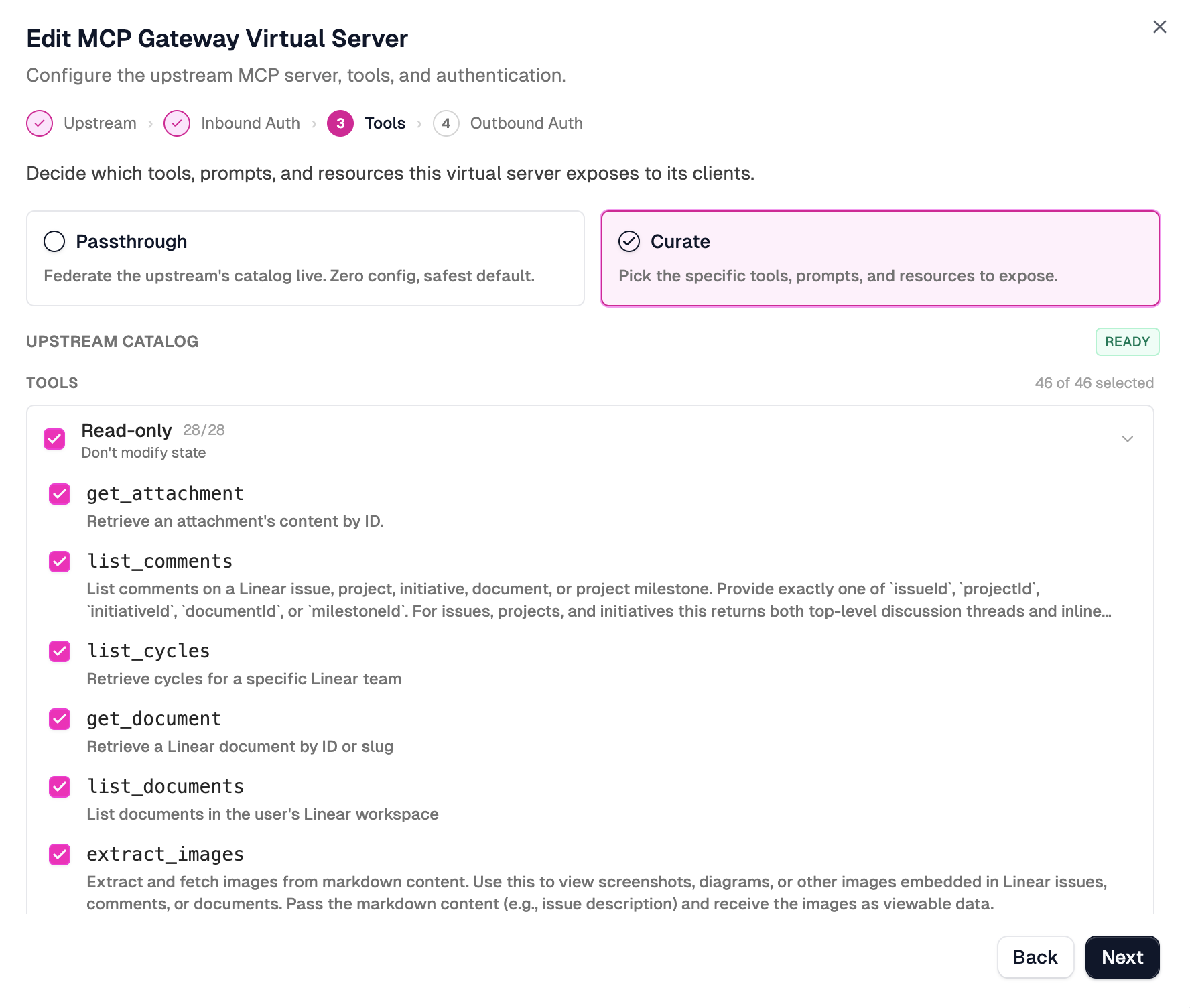
Pick what to expose. Choosing Curate prompts you to sign in to the upstream service so the wizard can read its catalog. After you sign in, the Upstream catalog lists the upstream's tools, prompts, and resources, grouped by category (for example, a Read-only group for tools that don't modify state), each with its description and a checkbox.
Clear the checkbox next to anything clients shouldn't see, or toggle a whole group at once with its group checkbox. For example, keep the Read-only group and clear the write or destructive tools. Anything left unselected is blocked at the gateway.
-
Finish the wizard and save. The wizard adds the
mcp-capability-filter-inboundpolicy toconfig/policies.jsonand wires it into the route. Save the project to deploy the change.
Passthrough needs no upstream sign-in, since it federates the catalog live instead of reading it up front.
What curation does at the gateway
Only what you select is exposed. Clients can't see or call anything else, so unselected tools are blocked at the gateway before the request reaches the upstream.
Go further in code
The wizard covers the common case: pick what to expose. For finer control, edit
the generated mcp-capability-filter-inbound policy directly. In code you can
also:
- Override a tool's description or annotations while keeping the upstream's schemas and name.
- Re-project a resource's downstream-facing
name,description, ormimeType. - Block an entire capability type as a temporary kill switch.
See the code version for these projections and the full policy reference.
Verify the filter
After saving (and the deploy completes), confirm the filter is active:
- Connect a test client (the MCP Inspector is the fastest option) to the curated route.
- Call
tools/list. Only the tools you selected should appear. - Call
tools/callwith a tool you didn't select. The gateway returns a JSON-RPCMethodNotFounderror before the request reaches the upstream.
If a tool you expected is missing, reopen the wizard's Tools step and confirm it is selected.
Related
- Curate tools in code: configure the policy directly, with description and annotation overrides.
- Capability filtering: the conceptual model behind curation.
- Portal quickstart: create a Virtual Server end to end.
- Connect a gateway to an upstream OAuth provider: pair curation with per-user upstream OAuth.